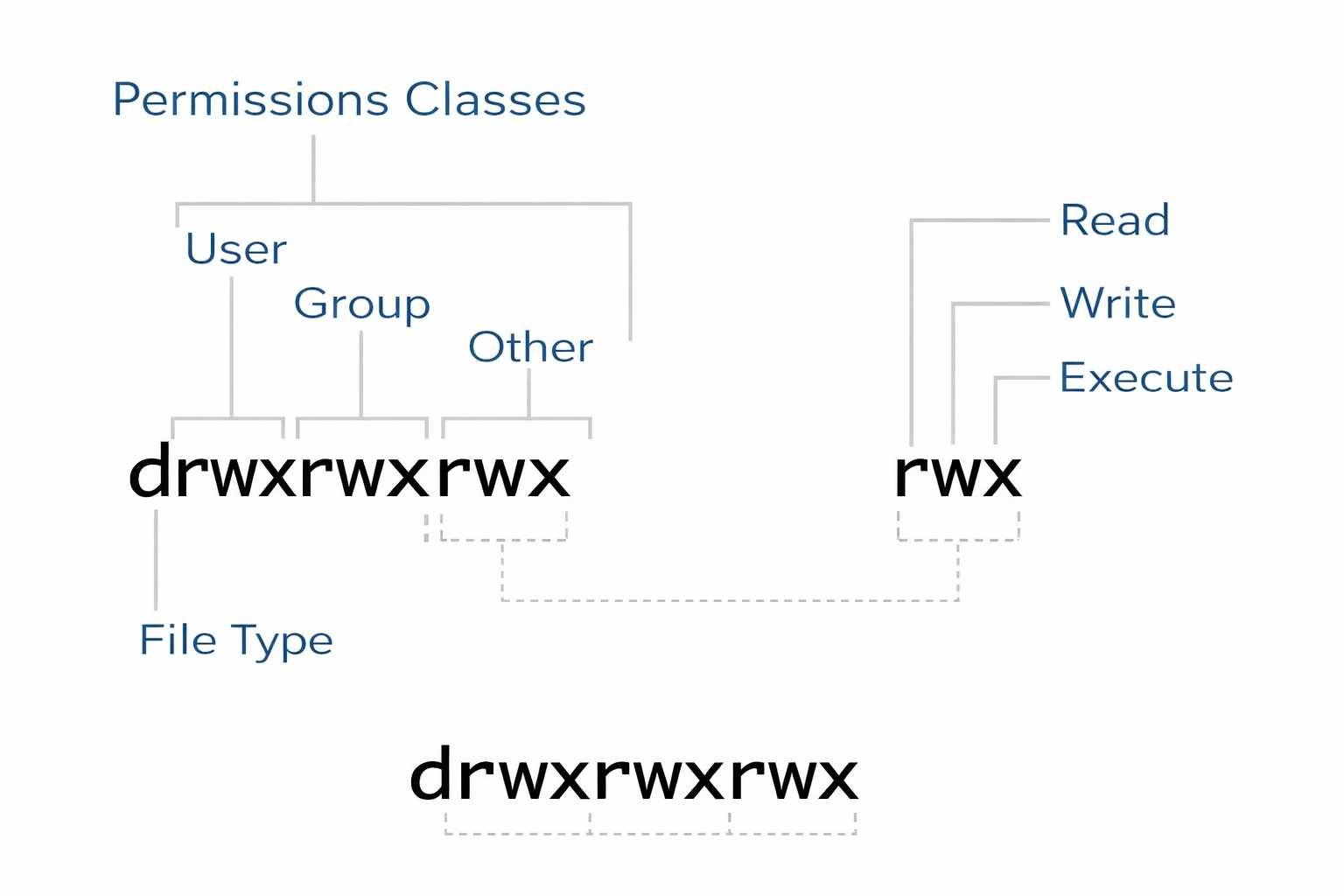
Permissions in Linux are fundamental security feature that controls who can access a file or directory and what operations they can perform. Linux longstanding philosophy regarding everything as a file means these file permissions encompasses all these categories of files:
| Symbol | Type | Example |
|---|---|---|
| - | Regular file | .txt, .cpp, .py |
| d | Directory/Folder | /home/olasknight/Downloads/ |
| l | Symbolic Link | indexLink.html -> index.html |
| p | Named Pipe | pipe |
| b | Block Device | /dev/sda |
| c | Character Device | /dev/tty |
| s | Socket | /var/run/docker.sock |
The first three are the most used in regular operations in Linux, the other 4 are particularly important
when doing system programming. Too see the file in a directory, run:
ls -l
The command not only list the file names but also type together with other related informations.
Permission Types
There are three types of file permissions in Linux describing access based on read, write and execute operations. The meaning for each of these permissions are different for files and directories.
| Type | Symbol | Description |
|---|---|---|
| Read | r | - Permission to read the actual content of a file. - Permission to read the directory structure list. |
| Write | w | - Permission to edit, add or modify file content. - Permission to modify, delete or move files in a directory. |
| Execute | x |
- Permission to execute the file. - Permission to access a directory. |
Permission Representations
1) Symbolic representation
The ls -la command lists files and directories with their permissions details in the first column of the output.
An example of output's first column is:
drwxr-xr-x
This representation is a combination of four distinct categories:
d - file type
rwx - owner permissions
r-x - owner group permissions
r-x - other users permissions
The symbols r, w and x stands for read, write and execute.
2) Numeric representation
File permissions can be represented in octal format effectively compressing the three permission bits into one octal value. An easier conversion to octal values may involve an intermediate conversion to binary where enabled permission bits are considered 1 and - considered 0. Symbolic permission rwx corresponds to 111 in binary because all permission bits are enabled. The binary representation is then easily converted to octal 7.
| Symbolic | Binary | Octal |
|---|---|---|
| rwx | 111 | 7 |
| rw- | 110 | 6 |
| r-x | 101 | 5 |
| r-- | 100 | 4 |
| -wx | 011 | 3 |
| -w- | 010 | 2 |
| --x | 001 | 1 |
| --- | 000 | 0 |
Permission Management
a) Permission Modification for Existing File
The chmod command, which stand for change mode is used to modify permission of existing file. There are two ways of specifying permission for chmod command:
1. Numeric Mode
To change permission in numeric mode, the chmod command if followed by octal representation of
the permission you want to grant and then the file name
chmod 700 bash.sh
2. Symbolic mode
To modify file permission in symbolic mode, the chmod command is followed by user class/category
plus the permission to be granted then the file name.
Chmod uo+rx bash.sh
YOU MIGHT ALSO LIKE
b) Permission Modification at Creation Time
There is a way to specify which permission bits to disable from the system's default maximum permissions,
acting as a filter. The command umask is a Linux command that controls the default permissions assigned to
newly created files and directories using numeric representation. It works by defining what permission to
mask out from the base permission. The base permission is an octal value that the system uses for newly
created files (666) and directories (777).
Final permission = Base permission - Umask value
For a system with a umask value of 002, default file permission will be 666 - 002 = 664 and the directory permission will be 777 - 002 = 775.
To view a systems umask, run the command umask in the terminal.
i. Setting umask temporarily
You can set the private default umask for the current session: umask 077 This means that the files you create thereafter will have the permission 600 (owner has rw- while other two categories have no permissions on the file). For directory the permission will be 700 (owner has rwx permission while other two categories have no permissions at all).
ii. Setting umask permanently
You can set permanent umask by editing shell's configuration file, ~/.bashrc. A system-wide permanent umask is set by editing /etc/profile. Both changes will reflect after the next login.
In conclusion, permission management is an important feature in Linux systems and a must-know for Linux users. In this article we discussed what Linux permission are, their types, ownership classes, permission representation and management of permissions. These knowledge will be invaluable in you Linux administration and your transition to Linux power user level.